

You've set up a 20% discount in Shopify. The campaign email is out, the social posts are live, and then the first customer message arrives: "Your site says 20% off, but the product still shows full price?"
Nothing is broken. The discount is real. The customer just can't see it yet, because Shopify discounts and Shopify sale prices are two different mechanisms that show up in two different places. Understanding that difference is the single most useful thing you can learn before your next sale, so that's where this guide starts.
By the end you'll know:
- why a discount code or automatic discount usually only appears at checkout,
- what
PriceandCompare-at priceactually do, - three ways to run an offer in Shopify and what each one looks like to the customer,
- how to set a sale price manually, and
- how to automate the whole thing, including putting prices back, when you're running a timed campaign across many products.
Why don't Shopify discounts show on product pages?
Product price vs. checkout discount
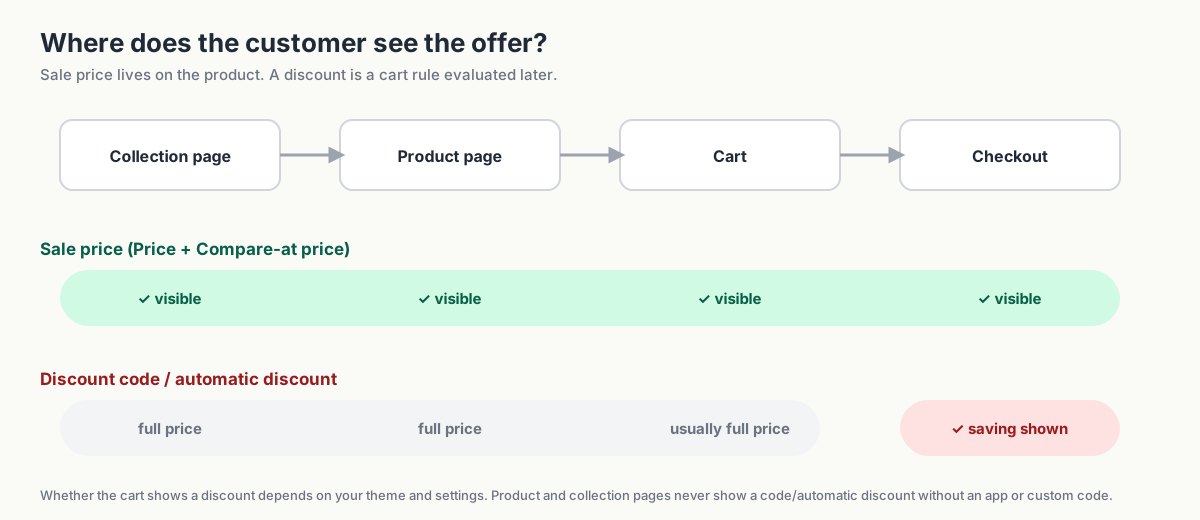
Shopify stores a price for each product variant. Your theme uses it on product pages, collection cards, search results, and in the cart.
A code or automatic discount applies a rule to the cart without changing that stored price. The saving appears when the rule applies, usually at checkout and sometimes in the cart, depending on your setup. Product and collection pages generally keep showing the regular price.
Shopify's sale-pricing documentation makes the same distinction: if you want a sale price to be visible on product and collection pages, you use the product's compare-at price. If you want strikethrough savings to appear earlier in the journey for a code or automatic discount, Shopify points you toward a third-party app or a custom solution.
For a storewide offer that shoppers should see immediately, start with sale pricing.
What Price and Compare-at price mean
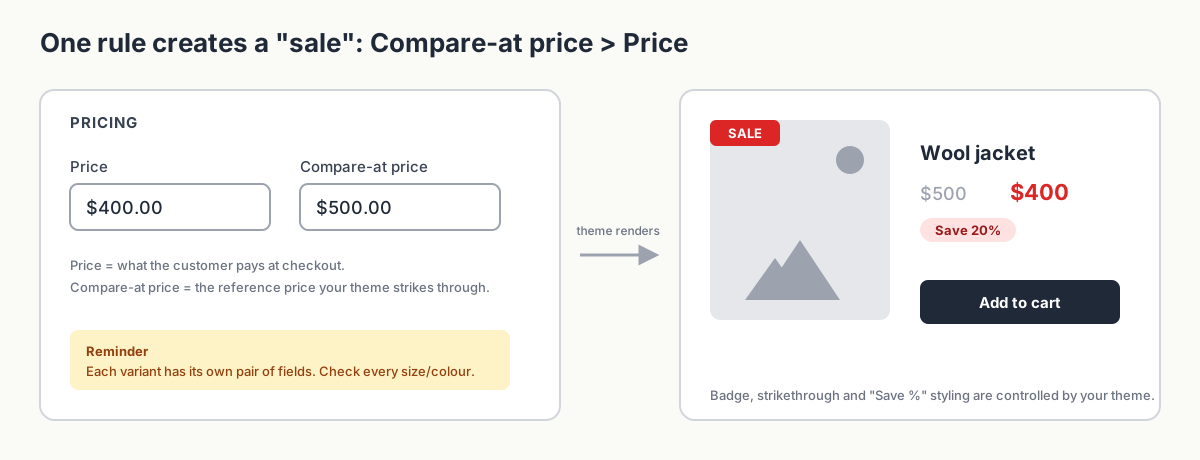
Open any product in Shopify admin and you'll see two fields in the Pricing section:
- Price — what the customer pays right now. This is the number used at checkout.
- Compare-at price — the original or reference price. When this field is higher than
Price, most themes treat the product as on sale: they show the compare-at price struck through, the current price next to it, and often a "Sale" badge or a "Save 20%" label.
The basic rule is Compare-at price > Price. A higher compare-at value tells a supporting theme to display the product as on sale.
That puts the saving beside the product, where shoppers are deciding whether to buy.
Shopify sale prices vs. discount codes: what's the difference?
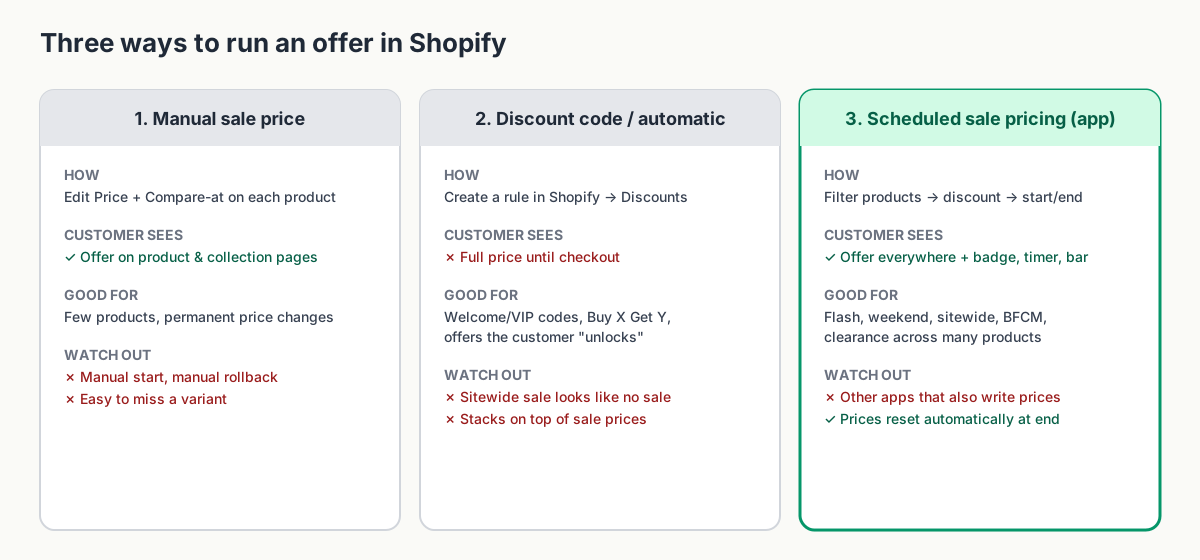
Each option suits a different kind of campaign. You may use all three at different times.
1. Manual sale price
You edit Price and Compare-at price on each product or variant, either one at a time or with Shopify's bulk editor.
What the customer sees: The reduced price throughout the purchase, with the original price struck through wherever your theme supports it.
Best for: Small catalogs, a handful of products, or a permanent price change.
What to plan for: Someone must change the prices at the start and restore them at the end. Keep a record of the originals and check every variant so no discount lingers after the deadline.
2. Automatic discount or discount code
You create a discount in Shopify's Discounts section: a code (WELCOME10) or an automatic discount (20% off everything in the "Summer" collection). Shopify lets you set start and end dates on discounts, and you can control how discounts combine with one another.
What the customer sees: Full price on product and collection pages. The saving appears once the discount is applied, typically at checkout.
Best for: Welcome offers, VIP and influencer codes, loyalty rewards, and other discounts customers unlock. Shopify also supports Buy X Get Y offers.
What to plan for: Explain when the saving applies. A "20% off this weekend" banner above full-price products can leave shoppers unsure whether the offer works.
3. Scheduled sale pricing with an app
An app writes to the same Price and Compare-at price fields you'd edit manually, but does it for all the products you select, at the exact time you choose, and reverses it automatically when the campaign ends. It can also add the storefront elements that manual editing can't: sale badges, countdown timers, announcement bars, and a sale collection or landing page.
What the customer sees: The same sale pricing as a manual edit, plus any badges, timers, or banners you enable.
Best for: Flash sales, weekend sales, sitewide sales, clearance, and Black Friday—especially when there are more products than you want to edit by hand.
What to plan for: Test the app with your theme and any integrations that update prices. A scheduled sync from another system can overwrite the sale.
How to show sale prices on Shopify product and collection pages
For a few products, you can set the offer directly in Shopify admin.
Example: $500 → $400
Say you sell a jacket at $500 and want to run it at 20% off.
- In Shopify admin, go to Products and open the jacket.
- In the Pricing section, set Price to
400. - Set Compare-at price to
500. - Save.
Your storefront will now show $500 $400, and most themes will add a sale badge automatically.
When this sale ends, set Price back to 500 and clear Compare-at price. Then check the product page and collection card to confirm the sale styling has gone.
Variant and collection pitfalls
- Variants have their own prices. A jacket in five sizes has five sets of price fields. Editing one size leaves the other four unchanged. Check every row in the variant table or bulk editor.
- Collections don't hold prices. Putting products into a "Sale" collection doesn't change anything about their price. The collection is a display container; the sale status still comes from the compare-at field on each product.
- Each price needs its own calculation. Across 300 products, calculating and entering a 20% reduction takes time. A spreadsheet or campaign tool can handle the arithmetic.
- Rollback is entirely on you. Shopify won't remember the old price. Export a CSV before you start, or keep a spreadsheet of original prices, so you can restore them accurately.
How your theme displays sale prices and sale badges
The compare-at field tells the theme "this is on sale." What the theme does with that information is up to the theme:
- whether it shows a strikethrough at all,
- whether it displays a "Sale" badge and what it says,
- whether it shows the saving as a percentage, an amount, or both,
- whether the sale styling appears on collection cards or only on the product page.
If you've set a compare-at price and see nothing, check your theme settings before assuming the data is wrong. Some themes have sale badges turned off by default, and a few older or heavily customized themes don't render compare-at prices on collection pages.
How to automate Shopify sale prices with Disco
Disco automates timed sales across a group of products. It updates the same Shopify price fields you'd edit by hand, then restores prices when the campaign ends.
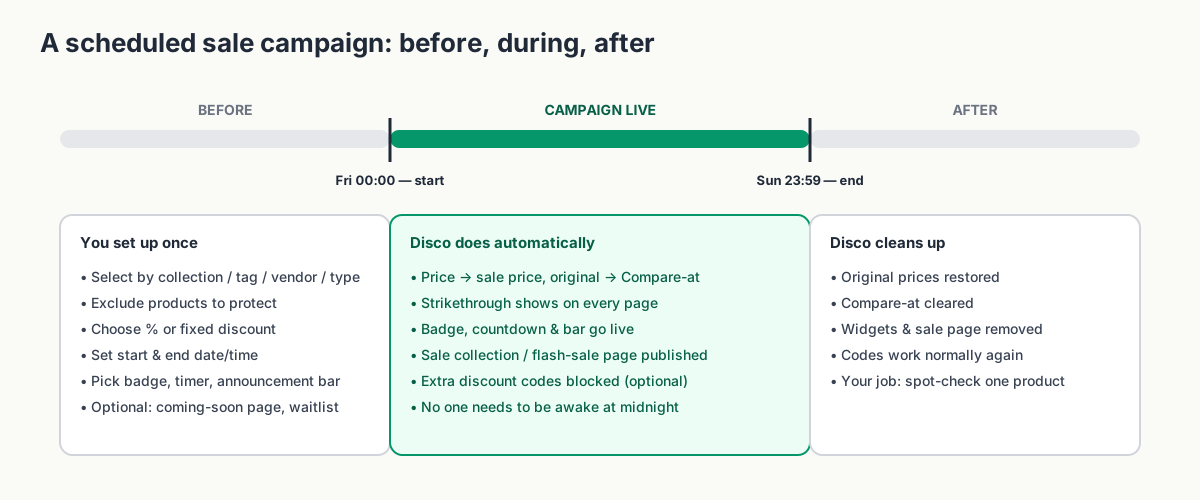
Here's the workflow for the same 20% jacket sale, extended to the whole outerwear range.
Select products via collection, tag, vendor, or type
Instead of opening products one by one, you pick them by filter: the "Outerwear" collection, everything tagged aw26, everything from a specific vendor, or a product type. You can exclude products you don't want touched, for example new arrivals or items already reduced, so a sitewide sale doesn't accidentally discount your bestsellers twice.
Set the discount
Choose a percentage or a fixed amount. Disco calculates the new Price for every selected product and variant and records the original price as the Compare-at price, so the strikethrough and sale styling appear automatically in your theme.
Schedule the start and end
Set a start date and time and an end date and time. Nobody needs to be online when the sale goes live at 00:00 or ends at 23:59. Multiple campaigns can be scheduled in parallel, so your weekend sale and your month-end clearance can run on different product groups without stepping on each other.
Show the sale price, badge, and timer
Because the price is on the product, it shows everywhere your theme shows prices. On top of that, Disco can add:
- a sale badge on product cards,
- a countdown timer on the product page,
- an announcement bar across the store, including a scheduled version that can capture emails before the sale opens,
- an auto-generated sale collection so customers can browse everything on offer in one place, and
- on higher plans, a dedicated flash-sale page that publishes when the campaign starts and comes down when it ends.
Revert to the original price after the campaign
When the end time arrives, Disco restores every product to its pre-campaign price and clears the compare-at value. No spreadsheet, no Monday-morning cleanup, and no accidental permanent discount on the jacket that was supposed to go back to $500.
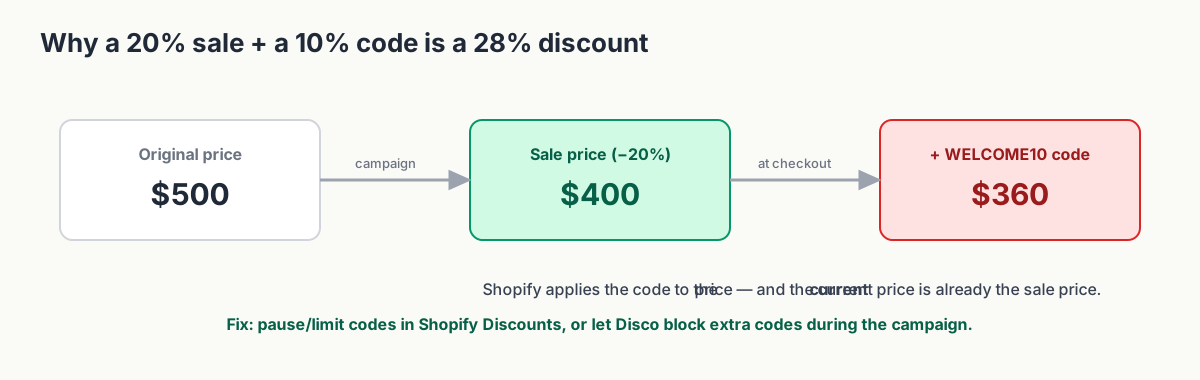
Disco can also block discount codes during a sale. Check this before launch: a 20% sale price plus a 10% welcome code gives the customer 28% off the original price.
When should you use sale prices, automatic discounts, or discount codes?
Match the method to the offer. If you combine sale prices with codes, calculate the total saving first. Use this as a starting point, not a rulebook. Plenty of stores run a sale price and keep a small welcome code live at the same time; the point is to do it deliberately.
| Campaign | Best mechanism | Why |
|---|---|---|
| Always-on welcome code (e.g. 10% for newsletter signup) | Discount code | You want the offer to be unlocked, not advertised on every product. |
| VIP, influencer, or partner codes | Discount code | Targeted, trackable, and shouldn't change catalog prices. |
| Buy X Get Y / free gift with purchase | Shopify's native Buy X Get Y discount | It's a cart rule, not a price change. |
| Permanent price reduction | Manual price edit | No end date means no rollback problem. |
| One-off sale on a handful of products | Manual compare-at price | Fast enough by hand; just remember to reverse it. |
| Flash sale (hours) | Scheduled sale pricing (Disco) | Precise start/end, visible urgency, automatic reset. |
| Weekend or sitewide sale | Scheduled sale pricing (Disco) | Hundreds of products, visible everywhere, no manual rollback. |
| Black Friday / Cyber Monday | Scheduled sale pricing + selective codes | Sale price for the headline offer; block or limit stacking codes to protect margin. |
| Clearance | Scheduled sale pricing with exclusions | Filter by tag or vendor, protect current-season stock, revert what doesn't sell. |
A useful rule of thumb: if the customer should see the offer on the product page, change the price. If the customer should unlock the offer, use a discount.
Common questions before you launch
Why isn't the compare-at price showing?
Work through these in order:
- Is
Compare-at priceactually higher thanPrice? Equal or lower values don't trigger sale styling. - Did you set it on every variant? Check the variant table, not just the first row.
- Is your theme configured to show it? Look for sale badge and "show compare-at price" settings in the theme editor, especially for collection cards.
- Is another system overwriting the price? If the sale price appears and then disappears minutes or hours later, something else is writing to the product (see the next question).
- Are you looking at a cached page? Hard-refresh or check in an incognito window.
Can a coupon stack on top of the sale price?
By default, yes. A discount code applies to whatever the current price is, and a sale price is just the current price. So a 20% sale plus a 10% code gives the customer 28% off, and Shopify has no way of knowing that wasn't your intention.
You have two levers. Within Shopify, you can review which discounts are active during the sale and adjust their combination settings or pause them. Within Disco, you can block discount codes for the duration of the campaign. For high-traffic sales like BFCM, do both and test with a real code before launch.
How to audit every active code and block the ones that shouldn't stack is covered in Stop discount stacking and protect margin.
What about Shopify Markets?
If you sell in multiple markets with market-specific pricing or price adjustments, a sale price change on the base product may not behave the way you expect in every market. Before any campaign, check one product in each active market and confirm the price and strikethrough render correctly. If you use a currency or markets app that also writes prices, treat it like any other price-syncing system and test it against a small campaign first.
The sale price appeared and then disappeared. What happened?
Disco and manual edits both write to Shopify's product price fields. So do ERPs, inventory systems, product feeds, marketplace connectors, dropshipping apps, and CSV imports. When two systems write to the same field, the most recent write wins. If your ERP syncs prices every hour, it can quietly reset your sale an hour after it starts.
Pause that system's price sync for the sale window, exclude the campaign products, or schedule the sync before launch. Otherwise, it can overwrite the sale again on its next run. Our help article on why Disco discounts appear, then disappear later covers the fix; When a Shopify discount disappears: troubleshooting price sync walks through finding the culprit.
Do I need an app for this at all?
Not always. If you have 15 products and run two sales a year, Shopify's bulk editor plus a CSV backup is a perfectly good workflow. An app earns its place when campaigns are frequent, time-sensitive, or larger than you're comfortable editing and reversing by hand, or when you want badges, timers, and a sale page without custom theme work.
Start with a small test campaign
Try a small campaign with Disco's free plan. Pick ten products and schedule a one-hour sale for tomorrow morning. Check how the offer looks on your product pages, test the cart, and watch the original prices return when it ends. You'll have a repeatable setup for your next sale.
Install Disco from the Shopify App Store →
For plan limits and pricing, see our current plans page.
Next: Shopify compare-at price: how to show strikethrough pricing is the field-by-field guide to the sale-price mechanism, and How to schedule a Shopify sale that starts and ends automatically shows how to set it, time it, and reset it without touching prices by hand.