

Two fields decide whether a Shopify product looks like it's on sale: Price and Compare-at price. There is no "on sale" checkbox, no sale status, and no separate sale-price field. When the compare-at value is higher than the price, your theme draws a strikethrough and, usually, a badge. When it isn't, nothing happens.
That one relationship sits behind most of the sale-related questions merchants ask: "the original price isn't showing," "the product still looks on sale after I changed the price back," "the discount disappeared an hour after launch," and "customers are getting my sale price and a coupon on top." Every one of them comes back to how these two fields work, who writes to them, and what the theme does with them.
This is the reference guide we link to whenever another article mentions original price, sale price, or strikethrough pricing. By the end you'll know:
- exactly what
Compare-at priceis and isn't, - what gets stored and what gets charged during a sale, with a worked $1,000 → $750 example,
- how compare-at pricing differs from a discount code,
- how to change one product, and how to change hundreds,
- a step-by-step checklist for when the original price refuses to show,
- what happens when customers use discount codes on top of a sale price, and
- how to automate both the change and the reset so compare-at prices only exist while the campaign is live.
In this guide
- What is compare-at price in Shopify?
- A 25% sale, from setup to reset
- Compare-at price vs. discount code
- How to show strikethrough pricing in Shopify
- How to bulk edit compare-at prices in Shopify
- Why is my Shopify compare-at price not showing?
- Can shoppers use a code on top of the sale price?
- How to automate compare-at price changes in Shopify
- FAQ
- Make the saving clear—and the reset automatic
What is compare-at price in Shopify?
What is the difference between price and compare-at price?
Open any product in Shopify admin and look at the Pricing section. You'll find two fields that matter for sales:
- Price is what the customer pays. It's the number Shopify uses in the cart, at checkout, on the order, and in your sales reports. Every variant has one.
- Compare-at price is the reference price displayed beside the current price. It helps shoppers see the saving; it doesn't determine what they pay.
Most themes use the same basic rule: when Compare-at price is higher than Price, show sale styling. That usually means a struck-through reference price beside the current price, and may include a badge. The details depend on your theme and its settings, as explained in Shopify's sale-pricing documentation.
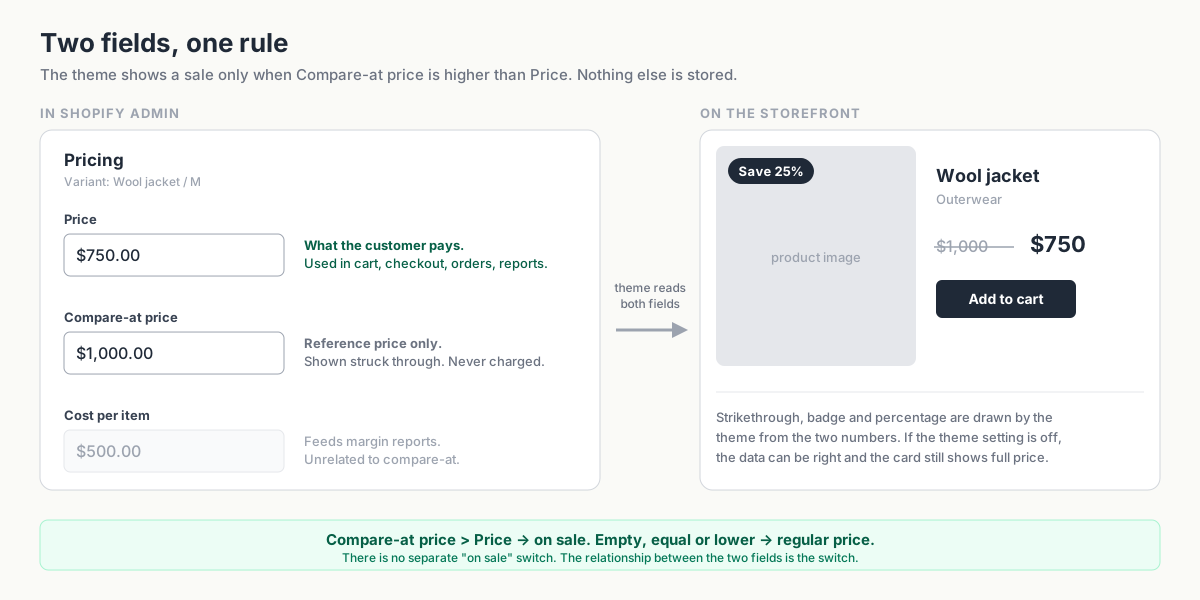
Keep three things in mind:
- The two values control sale styling. Lower
Priceand set an appropriate higher reference price to display the offer. Restore the original setup when the sale ends. - Each variant has its own values. A jacket in five sizes has five sets of price fields. Changing one size leaves the others unchanged.
- Other systems can overwrite your edits. Check any app or integration that updates prices if an offer disappears unexpectedly.
A 25% sale, from setup to reset
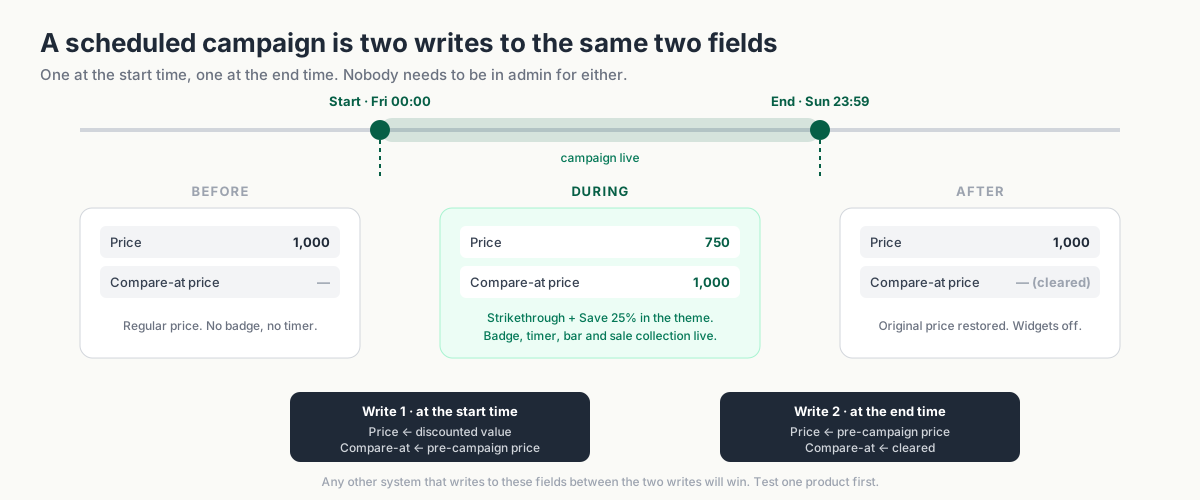
Take a wool jacket that normally sells for $1,000. At 25% off, its sale price is $750. With no additional discounts or charges, the two fields work like this:
| Before the sale | During the sale | After the sale | |
|---|---|---|---|
| Price | 1,000 | 750 | 1,000 |
| Compare-at price | (empty) | 1,000 | (empty) |
| What the customer sees | $1,000 | $1,000 | |
| What the customer is charged | $1,000 | $750 | $1,000 |
| What lands in reports | 1,000 | 750 | 1,000 |
During the sale, Price drops to 750 and Compare-at price shows 1,000. Afterward, Price returns to 1,000 and the compare-at field is cleared.
What reaches the cart and your reports
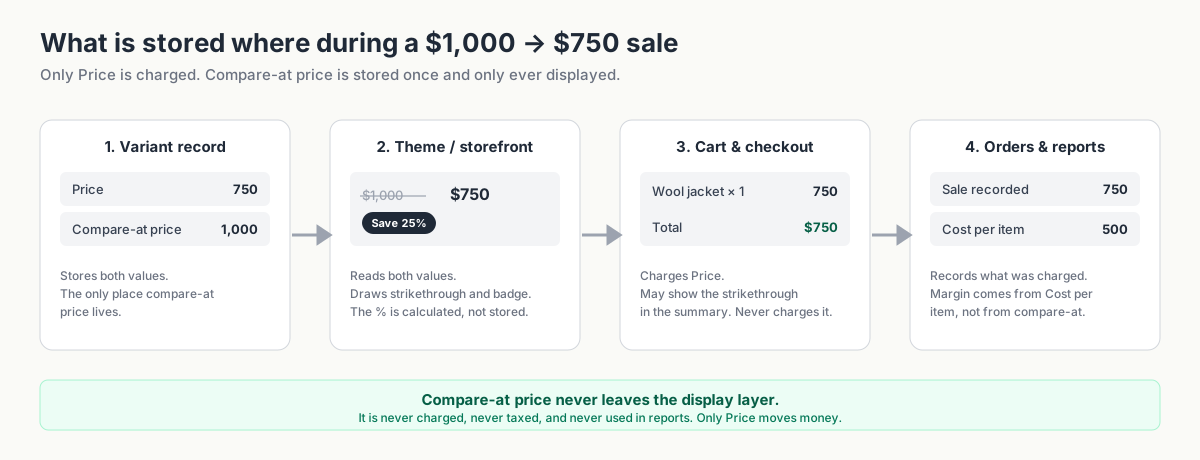
It helps to picture the four places a price passes through:
- The variant holds the price and compare-at values.
- The theme reads them to display the offer and calculate any savings badge.
- The cart and checkout use the current price, with any applicable discounts, shipping, and taxes. The compare-at value doesn't set the amount charged.
- Orders and reports reflect the sale transaction. Product cost comes from the separate
Cost per itemfield.
Decide how to handle rounding before changing many prices: 25% off $999 is $749.25. Also keep Cost per item separate from Compare-at price. One records your product cost; the other displays a reference price to shoppers.
Compare-at price vs. discount code
Where and when the customer sees the savings
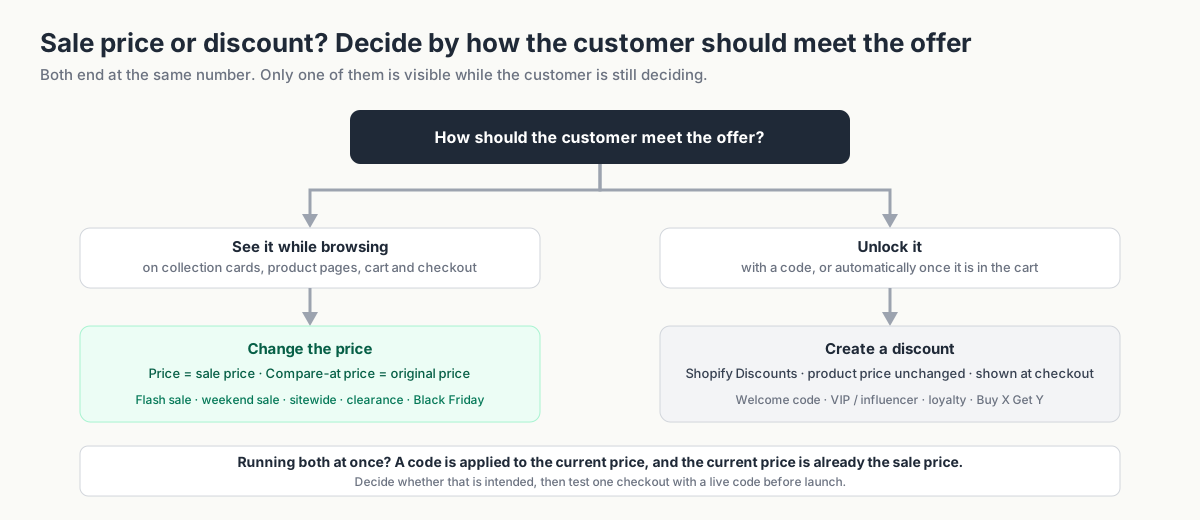
A sale price and a code can produce the same final price, but shoppers see them at different stages.
A sale price changes the product's current price. Supporting themes show the struck-through original on product and collection pages, and the reduced price carries through to checkout.
A discount code or automatic discount is a rule Shopify applies to the cart. The product's stored price never changes. The customer sees full price on the collection and product pages, and the saving appears once the discount is applied, which is typically at checkout.
| Where the customer is | Sale price (compare-at) | Discount code / automatic discount |
|---|---|---|
| Collection page | Strikethrough + sale price | Full price |
| Product page | Strikethrough + sale price | Full price |
| Cart | Sale price (strikethrough on many themes) | Full price, or a discount line once applied |
| Checkout | Sale price | Discount line and reduced total |
| Order confirmation | Sale price | Original price minus discount |
Use sale prices for offers shoppers should see while browsing, such as weekend sales or clearance. Use codes for offers customers unlock, such as welcome or VIP discounts. Shopify's native discounts also cover offers such as Buy X Get Y.
For a comparison by campaign type, see How to show sale prices on Shopify product pages before checkout.
How to show strikethrough pricing in Shopify
For a single product or a handful, admin is the fastest tool.
- Go to Products and open the product.
- If the product has variants, open the variant you want to change, or use the variant table at the bottom of the product page. If it has no variants, the Pricing section is on the product itself.
- In Pricing, set Price to the sale price, for example
750. - Set Compare-at price to the original price, for example
1000. - Repeat for every variant that should be on sale.
- Save, then open the product in the storefront and check both the product page and its collection card.
To end this sale, set Price back to 1000 and clear the compare-at field. Check the storefront afterward to confirm the product looks as it did before the offer.
If you're going to edit more than a few products by hand, write the original prices down first. Shopify doesn't keep a price history you can restore from.
How to bulk edit compare-at prices in Shopify
Choose a method based on how many prices you're changing and whether you need a scheduled reset.
Shopify bulk editor
From the Products list, select the products, choose Edit, and add the Compare-at price column if it's hidden. You can then type or paste values across many rows at once. Variants appear as separate rows, so a 40-product sale can easily become 200 rows.
The bulk editor suits small selections and occasional changes. Calculate the sale prices first and keep a record of the originals. You'll need to restore them when the sale ends.
CSV export and import
Export your products, change the Variant Price and Variant Compare At Price columns in a spreadsheet, and import the file back. This scales to thousands of variants and lets you use formulas for the discount math.
Check product matching, columns, and number formatting carefully before importing. Keep the original export, test a small file first, and coordinate with anyone else editing the catalog. Allow time for the import to finish at both the start and end of the sale.
Scheduled campaigns with an app
Disco lets you select products by collection, tag, vendor, or type, calculate the discount, and schedule the price change and reset. It can also manage campaign elements such as badges, a countdown, an announcement bar, and a sale collection.
| Bulk editor | CSV | Scheduled campaign | |
|---|---|---|---|
| Sweet spot | 5–50 products, one-off | Hundreds to thousands, one-off | Any size, recurring or time-boxed |
| Discount math | Manual | Spreadsheet formulas | Automatic |
| Starts at a set time | No | No | Yes |
| Automatic reset | No | No (re-import your backup) | Yes |
| Storefront extras (badges, timers, sale page) | No | No | Yes |
| Main risk | Slow; easy to miss variants | One bad file overwrites everything | Other apps writing prices; test first |
For examples by catalog size, see Bulk discounts in Shopify: put hundreds of products on sale without CSV. For the scheduling steps, see How to schedule a Shopify sale that starts and ends automatically.
Why is my Shopify compare-at price not showing?
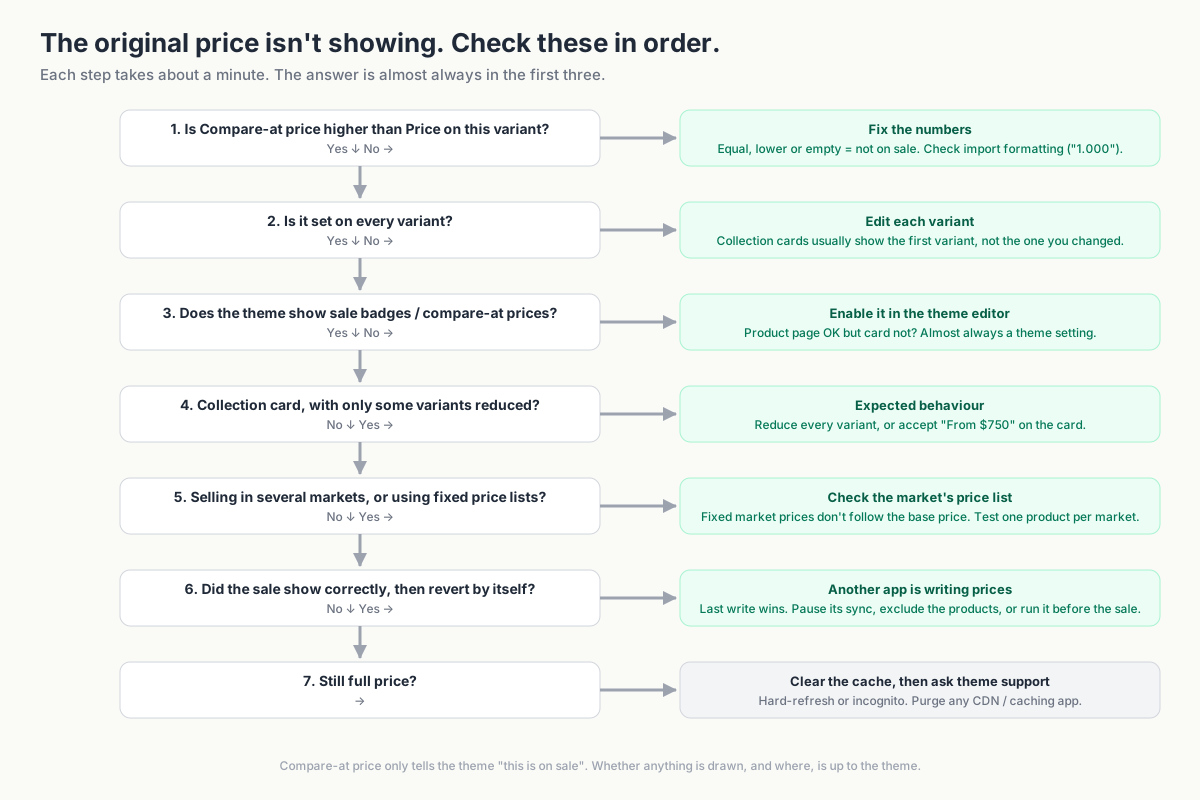
Start with the affected variant, then check how your theme and other integrations use its prices.
1. Check that the reference price is higher
Compare-at price must be strictly higher than Price. Equal values, a lower value, or an empty field all mean "not on sale." Check the specific variant you're looking at, and check for import artefacts: a compare-at price of "1.000" read as one krone, a stray currency symbol, or a decimal comma where Shopify expected a point.
2. Check every variant in the sale
The product page shows the selected variant's price. The collection card usually shows the first available variant, or the lowest price with a "From" prefix. If you put size M on sale and the card shows size S, you'll see full price. Open the variant table and confirm every row that should be on sale has both values.
3. Check theme settings for missing strikethrough prices or sale badges
The compare-at field only tells the theme the product is on sale. Whether the theme draws anything is a theme setting. In the theme editor, look for options such as "Show sale badge," "Show compare-at price," or "Sale price display" (the names vary by theme). Some themes show the strikethrough on the product page but not on collection cards by default, and some page-builder sections don't read compare-at prices at all.
If the product page looks right but the collection card doesn't, check the collection's theme settings and how it handles mixed variant prices.
4. Check variant pricing when compare-at prices are missing on collection pages
If only some variants are reduced, many themes show the collection card as regular-priced, or show "From $750" without a strikethrough. That's expected behavior. If the whole product should read as on sale, reduce every variant.
5. Check market-specific prices
If you sell in several markets, check how prices are set for each one. Percentage-based market adjustments generally follow the base price, but market-specific fixed prices set through a price list override the base price and won't change just because you edited the default variant. Before any campaign, open one product in each active market and confirm the strikethrough renders. If you use a currency or markets app that writes prices, treat it as one of the systems in the next step.
6. Check for another app updating prices
If the offer appeared and then vanished, look for a scheduled price update. Inventory and ERP systems, supplier apps, marketplace connectors, pricing tools, and CSV imports can all update the same fields. Check which jobs ran around the time the price changed.
Pause the conflicting price sync for the sale, exclude campaign products, or move the job to before launch. Otherwise, the next sync can undo the offer again. When a Shopify discount disappears: troubleshooting price sync walks through the diagnosis.
7. Rule out a cached page
Hard-refresh, or open the page in an incognito window. If you have a CDN or a caching app in front of the store, purge it. If everything above checks out and the storefront still shows full price, this is the last thing to rule out before contacting your theme's support.
Can shoppers use a code on top of the sale price?
Yes, if the code's conditions are met and you haven't blocked it.
With the jacket priced at $750, an eligible WELCOME10 code takes another 10% off that amount. Shopify's combination settings govern how discounts combine with each other; a reduced catalog price sits outside those rules.
Here's what that does to the jacket:
| Regular price | Sale only | Sale + 10% code | |
|---|---|---|---|
| Customer pays | $1,000 | $750 | $675 |
| Discount vs. original | 0% | 25% | 32.5% |
| Contribution margin (cost $500) | $500 | $250 | $175 |
The total discount rises from 25% to 32.5%, while the amount left after product cost falls from $250 to $175—a 30% drop. Account for shipping, fees, and other costs before deciding whether to allow the code.
To manage extra discounts:
- Pause or restrict the codes in Shopify Discounts for the sale window.
- Adjust combination settings so, for example, order-level codes can't combine with product discounts. This helps if you're using native discounts alongside sale prices, but again, it doesn't see the sale price itself.
- Block additional discount codes during the campaign in Disco, then test any automatic discounts separately.
An extra loyalty discount may be part of the offer. Calculate it in advance and test checkout with a live code before launch. Stop discount stacking and protect margin covers the full audit.
How to automate compare-at price changes in Shopify
For a timed sale, Disco handles the updates to Price and Compare-at price, then restores prices at the end. Your theme displays the offer using the same fields as a manual edit.
1. Select products in bulk
Choose products by collection, tag, product type, or vendor, and add exclusions for anything that shouldn't move: new arrivals, low-margin lines, items already reduced. The free Starter plan covers a small campaign; larger catalogs and more simultaneous campaigns sit on the paid plans (see current plans for the limits).
2. Set the discount
Pick a percentage or a fixed amount. Disco calculates the new Price for every selected variant and records the pre-campaign price as the Compare-at price, so the strikethrough and the "Save 25%" label appear automatically in your theme.
3. Schedule the start and end
Set the start date and time and the end date and time, and confirm the timezone. The campaign goes live at 00:00 on Friday whether or not anyone is awake, and ends at 23:59 on Sunday the same way. Multiple campaigns can run in parallel on different product groups.
4. Add the storefront elements
Turn on a sale badge, a countdown timer on the product page, and an announcement bar. Disco can also generate a sale collection so every discounted product is browsable in one place, and, on higher plans, a dedicated flash-sale page that publishes when the campaign starts and comes down when it ends.
5. Let the reset happen
At the end time, Disco restores every variant's original Price and clears the Compare-at price. The jacket goes back to $1,000, the badge disappears, and nothing is left for Monday morning.
Before the first full sale, test a few products for an hour. Include a product with several variants and one with an existing compare-at price. Record their original values and check the full start-to-reset cycle across your theme and markets.
FAQ
Is compare-at price the same as MSRP or RRP?
Not technically. It's a free-form reference field, and Shopify doesn't check what you put in it. Many merchants use it permanently for a recommended retail price, which makes every product look on sale all the time. That works against you twice: your actual sales don't stand out, and, depending on where you sell, a reference price that never reflected a real selling price can create legal exposure. Use compare-at for genuine prior prices, and keep it empty the rest of the time.
Are there rules about what I can show as the original price?
Often, yes. In the EU, including Denmark, when you announce a price reduction, the "before" price you show generally has to be the lowest price you applied in the 30 days before the reduction, and other jurisdictions have their own reference-pricing rules. This isn't legal advice, but it's a good reason to keep a record of what each product actually sold for before a sale, and to think twice about running back-to-back campaigns on the same products.
Does compare-at price affect checkout?
The compare-at value doesn't set the amount charged. Checkout uses the current product price and applies any eligible discounts, taxes, and shipping charges.
Can I schedule a compare-at price change natively in Shopify?
Shopify lets you schedule discounts with start and end dates. The standard product editor has no scheduler for price fields. Shopify Plus stores can use Shopify's Launchpad app for timed product price changes. Other stores can use a sale-pricing app or custom automation to handle the start, end, and reset.
What if another app changes prices during my sale?
The most recent write wins, so whichever system runs last sets the price the customer sees. Identify the app (the timing of the reversal usually points to a sync schedule), then disable its price sync for the sale, exclude the affected products, or move its sync to run before the campaign starts. If you're a Disco user and the price still reverts after those changes, send the product URL, the timestamp, and the list of apps that write prices to support.
How do I remove a compare-at price after a sale?
If the field was empty before the sale, clear it when you restore the regular price. If it already held a reference price, record that value before launch and verify how your campaign handles it at reset.
Does compare-at price show up in Google Shopping and other feeds?
Typically, yes. Shopify's Google & YouTube channel and most feed apps map the compare-at price to the feed's regular price and Price to its sale price whenever a compare-at value is present. Check your feed's field mapping so a permanent RRP in the compare-at field doesn't advertise a permanent sale in your ads.
Make the saving clear—and the reset automatic
Set the two price fields, check every selected variant, and confirm that shoppers can see the offer. Use Disco to schedule the changes and the reset when you're ready to run a timed campaign. Start with a small group so you can check both ends of the sale before expanding it.
Install Disco from the Shopify App Store →
For plan limits and pricing, see our current plans page.
Next: How to schedule a Shopify sale that starts and ends automatically sets and clears the compare-at price on a timer, and Bulk discounts in Shopify: put hundreds of products on sale without CSV does it for the whole catalog at once.